User manual
Idéorama is a reference board that holds images, 3D models, notes and drawings on one infinite canvas. This manual covers every feature in the current build.
Contents
Getting started
Idéorama is a standalone desktop app for Windows, macOS and Linux. There is no separate runtime to install.
- Download the build for your platform and extract the archive.
- Launch Idéorama. On macOS, drag the app to
Applicationsfirst. - To open a board at launch, double-click a
.idefile, drag it onto the app, or pass it on the command line:ideorama my_board.ide
The window opens on an empty canvas. Drop a few images and a model on it, or load the demo board.
The UI is minimal on purpose. There is no toolbar. Use the right-click menu and the command palette (Ctrl K) to find every action.
The canvas
- Pan: drag with the middle mouse button, or hold Space and drag.
- Zoom: scroll the mouse wheel. Zoom follows the cursor.
- Fit all: Home frames the whole board.
- Fit selection: F frames the selected items. Double-clicking an item frames that item.
- 100%: 1 shows images at their real pixel size.
- Grid: “Show grid” in the menu turns a background grid on or off.
When nothing moves, the board does no work. An idle board uses almost no CPU or GPU, so you can leave it open next to your other apps.
Adding references
There are three ways to add something:
- Drag and drop files or folders from your file manager onto the canvas. Items appear where you drop them. Each dropped folder becomes a section: a title note with the folder name, its images and models in a grid below, sections side by side. Subfolders become smaller sections stacked under their folder.
- Paste with Ctrl V. Paste an image from the clipboard (a screenshot, an image copied in a browser), a list of file paths, or image URLs, which are downloaded.
- Copy inside the board: Ctrl C, Ctrl X, Ctrl D to duplicate.
Supported formats
| Type | Formats |
|---|---|
| Images | PNG, JPEG, WebP, TGA, BMP, SVG, HDR, EXR |
| 3D models | FBX, glTF (.gltf / .glb), OBJ, USD (.usd / .usda / .usdc / .usdz) |
Files load in the background. A placeholder shows until each file is ready, and the board stays responsive while a large FBX loads.
Textures for a model are found automatically. Idéorama searches the model's folder and nearby folders such as textures/ and matches files by name. If a texture is still missing, the model loads with plain materials and a message tells you so.
Select and transform
Selecting
- Click an item to select it. Shift- or Ctrl-click adds or removes items.
- Drag on empty canvas to draw a selection rectangle.
- Ctrl A selects everything. Esc clears the selection.
Moving, scaling, rotating
- Move: drag a selected item. The arrow keys nudge by 1 pixel, and Shift + arrow by 10.
- Scale: drag a corner handle. Hold Alt to scale from the centre.
- Rotate: drag the round handle above the selection. Hold Shift to snap to 15°.
- Flip: H flips horizontally and V vertically.
- Reset: Ctrl R resets rotation. Ctrl Shift R resets the whole transform.
Other item actions
- Stacking order: ] and [ move an item one step forward or back. Ctrl ] and Ctrl [ bring it to the front or send it to the back.
- Lock: Ctrl L locks the selected items so you can't move them by accident.
- Grayscale: G shows an image in grayscale, which helps you read values.
- Color (EXR / HDR): HDR images are shown through ACES 1.3 like in a compositing app (EXR read as ACEScg, HDR as linear Rec.709). Right-click › Color to change an image's input color space or exposure, or switch the view between ACES, un-tone-mapped and raw. PNG and JPG are shown unchanged.
- Opacity: set 50% or 100% from the menu.
- Delete: Delete or Backspace.
Every change can be undone with Ctrl Z and redone with Ctrl Shift Z or Ctrl Y. A drag is one undo step, and so is a layout command.
3D model cards
Each model sits in a card: a rectangle with its own camera. You move, scale and arrange the card like an image. Inside it, you control the view.
Navigating inside a card
- Alt + left-drag orbits around the model.
- Alt + middle-drag pans the model inside its card.
- Alt + mouse wheel moves the camera closer or further.
View presets
Use the numeric keypad, as in Blender. Presets apply to every selected model card, even in a mixed selection.
| Key | View |
|---|---|
| Num 1 | Front (Ctrl for back) |
| Num 3 | Right (Ctrl for left) |
| Num 7 | Top (Ctrl for bottom) |
| Num 5 | Three-quarter |
| Num . | Frame the model in its card |
Look
- Z switches shading between PBR (textures and materials) and clay (plain grey, good for reading forms).
- L switches lighting between studio and flat.
- Fit card to model (menu) trims the card around the model's silhouette for the current view.
Models are measured on import. Idéorama knows a model's real height in metres and where it stands on the ground, so layout can treat it like any drawn reference. Models exported in centimetres are detected from their size and rescaled.
Notes
- Press T to add a note at the cursor, then type.
- To edit a note, double-click it or select it and press Enter or F2. Click outside the note or press Esc to finish.
- Ctrl = and Ctrl − change the text size. “Wider” and “Narrower” in the menu change the width.
- Styles: sticky (yellow), light, dark and plain (text only, good for titles).
Notes are items like any other. You can align them, rotate them and arrange them with your references.
Drawing
Press B to enter draw mode, and press B, Esc or Enter to leave it. A toolbar appears at the top of the window.
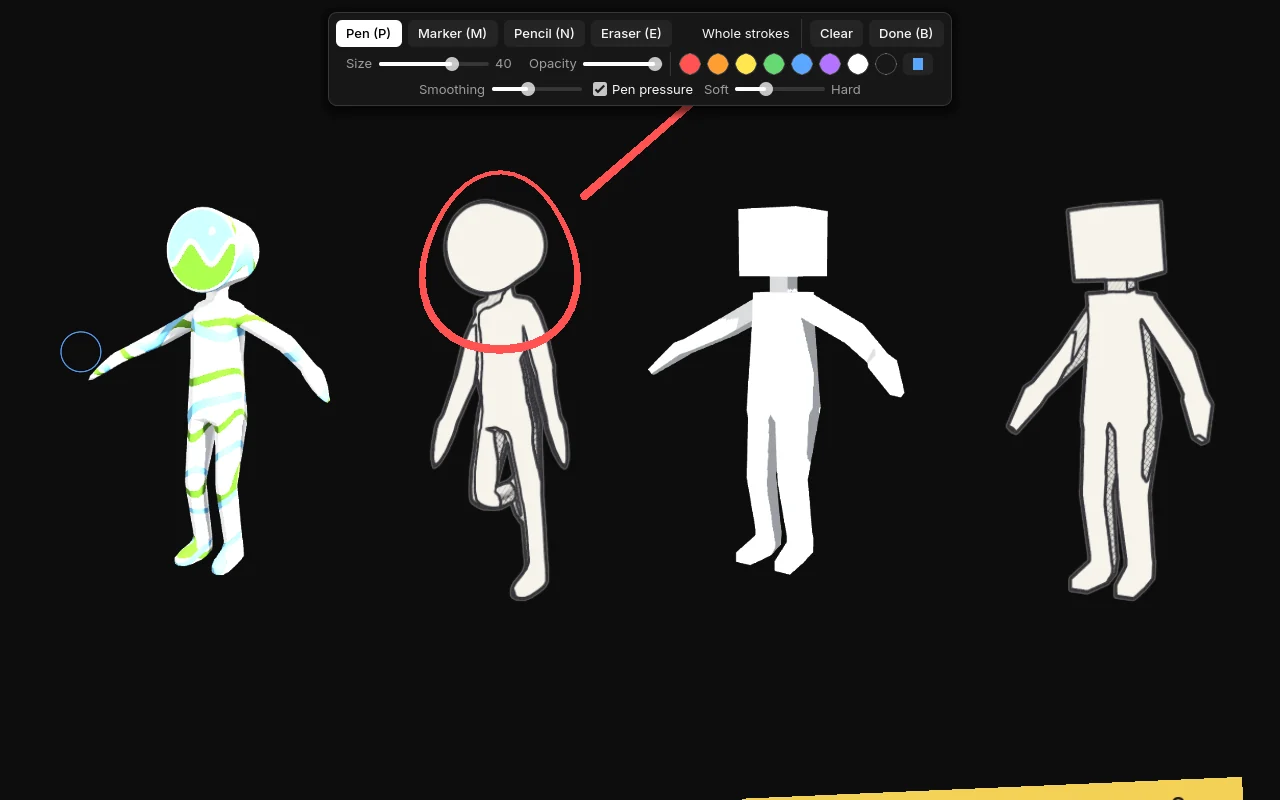
| Key | Tool |
|---|---|
| P | Pen: solid line, width follows pressure |
| N | Pencil: thin, lighter line that follows pressure |
| E | Eraser on or off |
| F | Flat: wide, even width, square ends, for blocking in shapes |
| L | Lasso fill: draw an outline, it fills with flat color |
| I | Eyedropper: click to pick a color on screen (or Alt+click) |
| [ ] | Smaller or larger brush |
- Pressure: with a pen tablet, pressure sets line width. Tick or untick “Pen pressure”, and use the Soft–Hard slider to tune the curve.
- Smoothing steadies shaky lines. Higher values give smoother lines with a little more lag.
- Eraser: by default it erases parts of strokes. “Whole strokes” removes each stroke you touch.
- Clear removes all strokes from the current drawing.
- Layers: each drawing has its own layers, in the panel on the right. Click a layer to draw on it, untick it to hide it, double-click to rename. Use +, −, ↑, ↓ to add, delete and reorder, and the slider for layer opacity. The eraser only works on the active layer.
- Colors: swatches, the color picker, the eyedropper and a Recent row with the last 8 colors you used. The eraser also cuts holes in lasso fills.
Drawings are board items. After you leave draw mode you can move, scale, align and delete them. Undo works stroke by stroke.
Arrange and align
Layout commands work on the selection, whatever it contains: images, model cards, notes and drawings. Each command is one undo step.
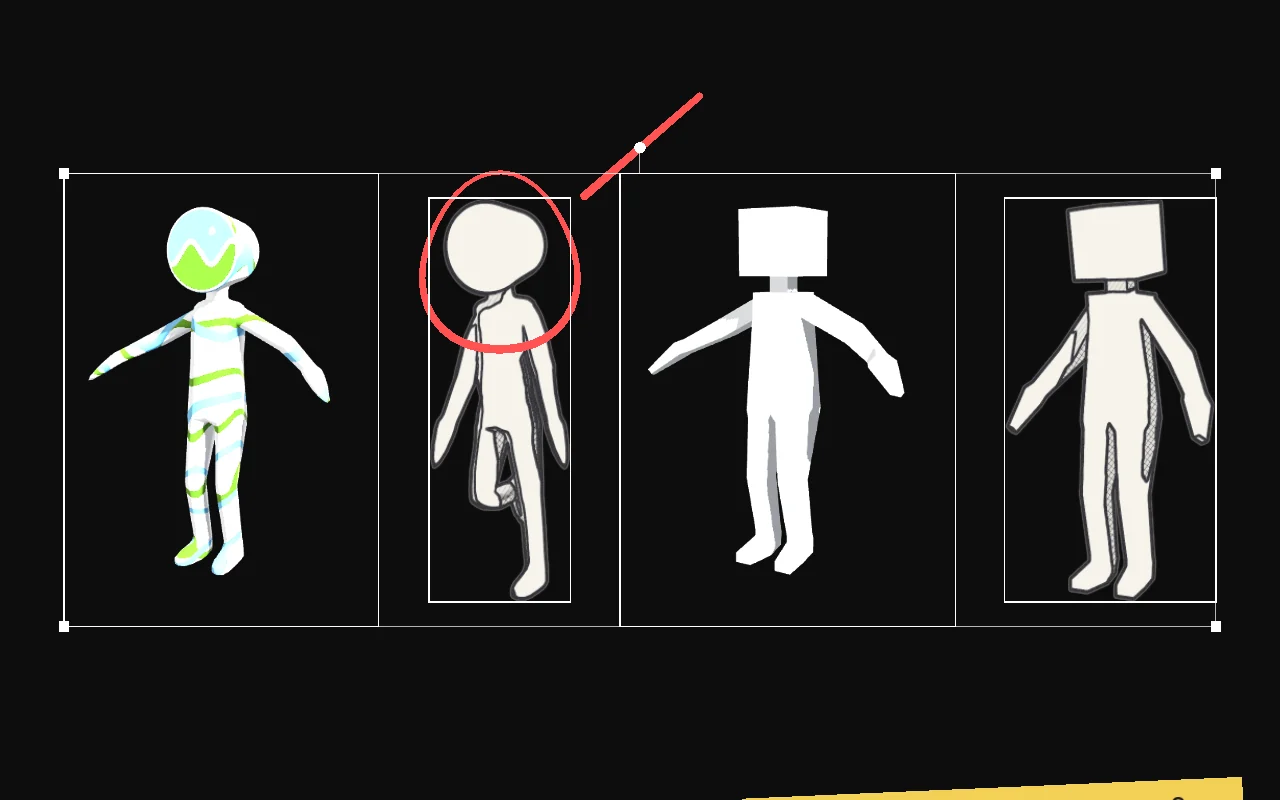
Content or frame
By default, alignment uses the content of each item, not its frame. For a cut-out sketch that means the drawn subject. For a model card it means the model itself, standing on the ground. So “align bottom” puts every item on the same floor, whatever empty space surrounds it. “Toggle align: content / frame” in the menu switches to frame edges.
Align and distribute
| Shortcut | Action |
|---|---|
| Alt + arrows | Align left, right, top or bottom |
| Alt H / Alt V | Centre horizontally or vertically |
| Alt Shift H / V | Distribute with equal gaps |
Normalize
- Height (Alt N), width, scale and area make items the same size by that measure.
- True scale (Alt Shift N) sizes model cards by the model's real height. A tall model appears taller than a small one, in proportion.
Arrange
- Optimal (Ctrl P) packs the selection into a compact block.
- Grid (Alt G) places items in equal cells, mixing images and models.
- Lineup (Alt L) places items in a row on a common ground line. Use it for turnarounds and side-by-side comparisons.
- By name, path, date or type sorts items, then arranges them.
- Stack piles items on top of each other, useful before you compare them.
Align and distribute need at least two selected items. Arrange and lineup work on one or more. Locked items are skipped and stay where they are.
Boards and files
A board is saved as one .ide file. Use Ctrl N for a new board, Ctrl O to open, Ctrl S to save and Ctrl Shift S to save as. Your three latest boards are listed under “Recent”.
Ctrl E exports the selection or the whole board as a PNG, JPG or PDF image, at 1×, 2× or 4×. PNG can keep a transparent background. 3D models are re-rendered at the export size, so they stay sharp.
Embedded or linked
- Embedded assets are stored inside the
.idefile. Use this to send a board to someone else. - Linked assets stay on disk and the board keeps their paths, relative to the board where possible. Boards stay small, and changes to a source file show up on the board.
“Embed all assets” and “Make all assets linked” switch the whole board. If linked files have moved, Idéorama tells you how many are missing and offers to find them in a folder you choose.
Autosave and recovery
The board is autosaved every few minutes (3 by default) to a separate recovery file, never over your own file. If Idéorama closes unexpectedly, it offers to restore the board on the next launch. It also asks before closing a board with unsaved changes.
Window modes
These modes keep your references visible while you work in another app.
| Shortcut | Mode |
|---|---|
| Ctrl T | Always on top |
| Ctrl B | Custom title bar (default) or system frame. Drag the top edge to move the window, double-click it to maximize; minimize, maximize and close appear top-right on hover. Ctrl Alt + drag also moves it. The window opens windowed, at its last size and position. |
| Ctrl Shift O | Overlay: clicks pass through to the app below. To exit, click the handle in the top-right corner. |
| Ctrl Shift F | Resize the window to fit the board |
| Ctrl Alt L | Lock board: you can pan and zoom, but not edit |
| Menu | Transparent background, window opacity 50%, 75% or 100% |
Some modes depend on the operating system. If a mode isn't available, a message tells you instead of failing silently.
Theme and language
The interface is black and white and uses the Inter typeface.
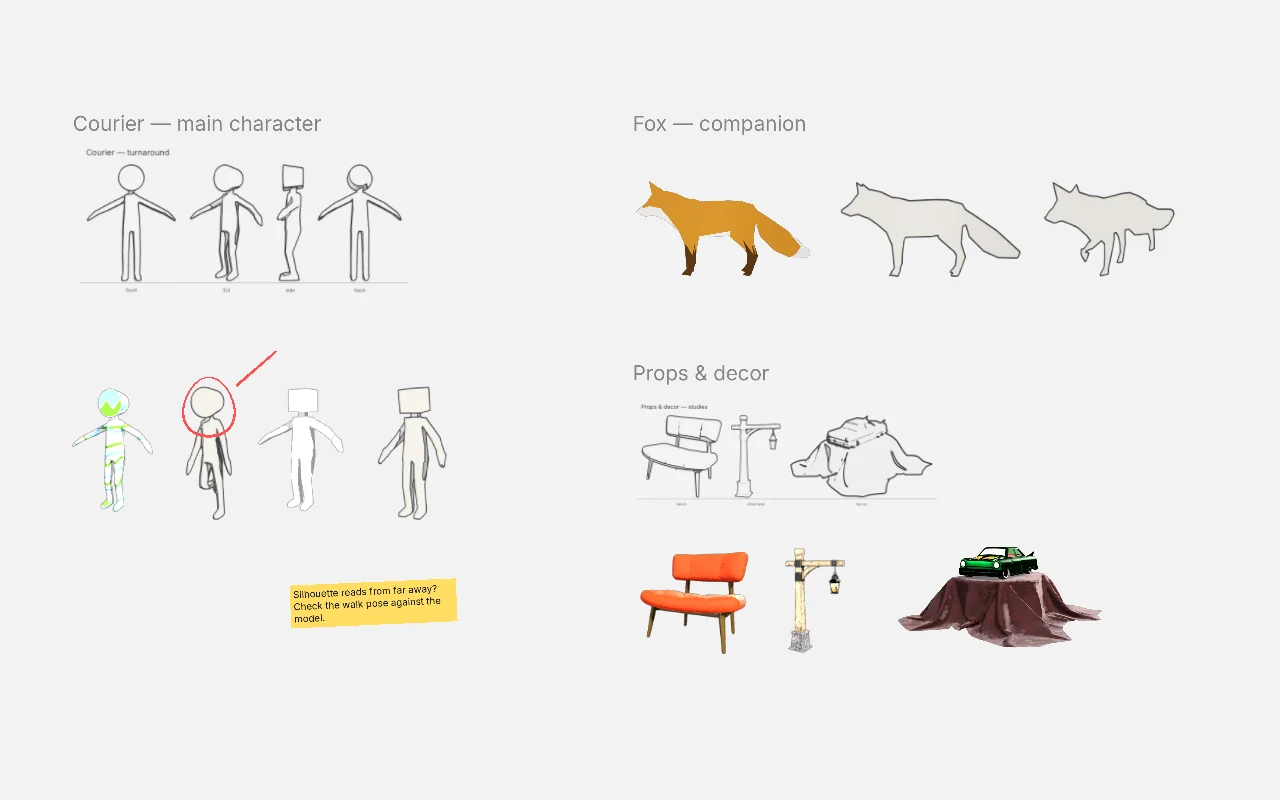
- Theme: dark, light, or follow the system, from the menu or the palette. Ctrl Shift T cycles through them.
- Language: right-click ▸ Language and choose English, Français, Español, Deutsch, Italiano or System. The interface switches immediately.
Menu and command palette
Right-click anywhere for the context menu. It lists only the actions that apply to the current selection.
The command palette (Ctrl K or F1) lists every action with its category and shortcut. Type a few letters, use the arrow keys to choose, and press Enter to run it. Actions that don't apply to the current selection are hidden.
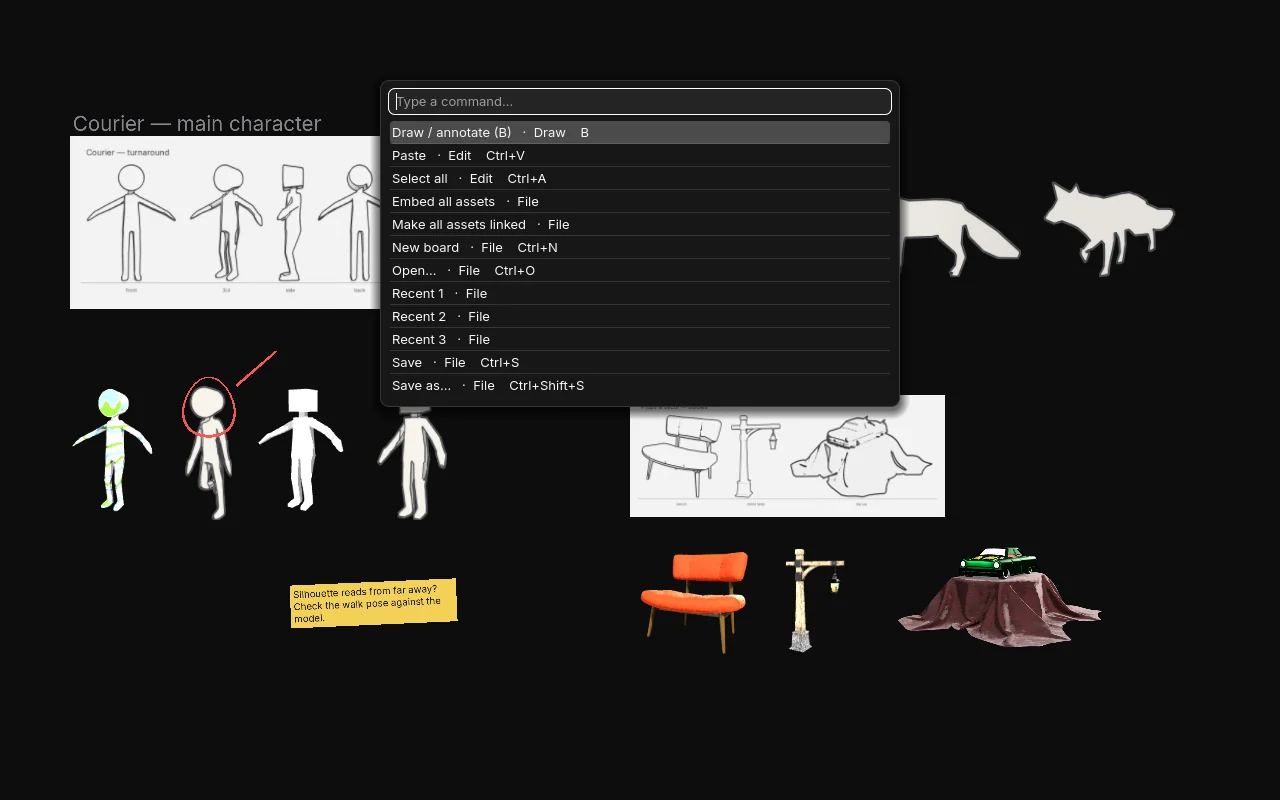
Updates: once a day at startup, Idéorama checks whether a newer version is out (it only downloads a small version file, nothing about you is sent). A discreet bar at the top offers Update on Windows and Linux: the new version is downloaded, verified, and installed when you click Restart now (you are asked to save first). On macOS, or if the app's folder is read-only, Download opens the zip in your browser. Skip this version hides it until the next one. In the palette: Check for updates, and Toggle update check on startup to turn the daily check off.
Keyboard shortcuts
On macOS, use Cmd where this list says Ctrl.
File and edit
| Ctrl N / O / S | New, open, save |
| Ctrl Shift S | Save as |
| Ctrl E | Export image |
| Ctrl Z | Undo |
| Ctrl Shift Z · Ctrl Y | Redo |
| Ctrl C / X / V / D | Copy, cut, paste, duplicate |
| Delete · Backspace | Delete |
| Ctrl A · Esc | Select all, deselect |
View
| Home | Fit all |
| F | Fit selection |
| 1 | Zoom 100% |
| Ctrl K · F1 | Command palette |
| Ctrl Shift T | Cycle theme |
Items
| Arrows · Shift + arrows | Nudge 1 px · 10 px |
| H / V | Flip horizontal, vertical |
| Ctrl R | Reset rotation |
| Ctrl Shift R | Reset transform |
| ] / [ | Forward, backward |
| Ctrl ] / Ctrl [ | Bring to front, send to back |
| Ctrl L | Lock or unlock |
| G | Grayscale |
Notes and drawing
| T | New note |
| Enter · F2 · double-click | Edit note |
| Ctrl = / Ctrl − | Text size |
| B | Draw mode on or off |
| P N F L E I | Pen, pencil, flat, lasso fill, eraser, eyedropper (in draw mode) |
| [ / ] | Brush size (in draw mode) |
3D cards
| Alt + drag | Orbit |
| Alt + middle-drag | Pan the model |
| Alt + wheel | Dolly |
| Num 1 3 7 | Front, right, top (Ctrl: opposite side) |
| Num 5 · Num . | Three-quarter view · frame model |
| Z · L | Shading · lighting |
Layout
| Alt + arrows | Align |
| Alt H / V | Centre |
| Alt Shift H / V | Distribute |
| Alt N | Normalize height |
| Alt Shift N | True scale |
| Ctrl P | Arrange optimal |
| Alt G | Arrange grid |
| Alt L | Lineup |
Window and mouse
| Ctrl T | Always on top |
| Ctrl B | Borderless |
| Ctrl Shift O | Overlay (click-through) |
| Ctrl Shift F | Fit window to board |
| Ctrl Alt L | Lock board |
| Middle-drag · Space + drag | Pan |
| Wheel | Zoom |
| Right-click | Context menu |
| Ctrl Alt + drag | Move the window |
Demo board
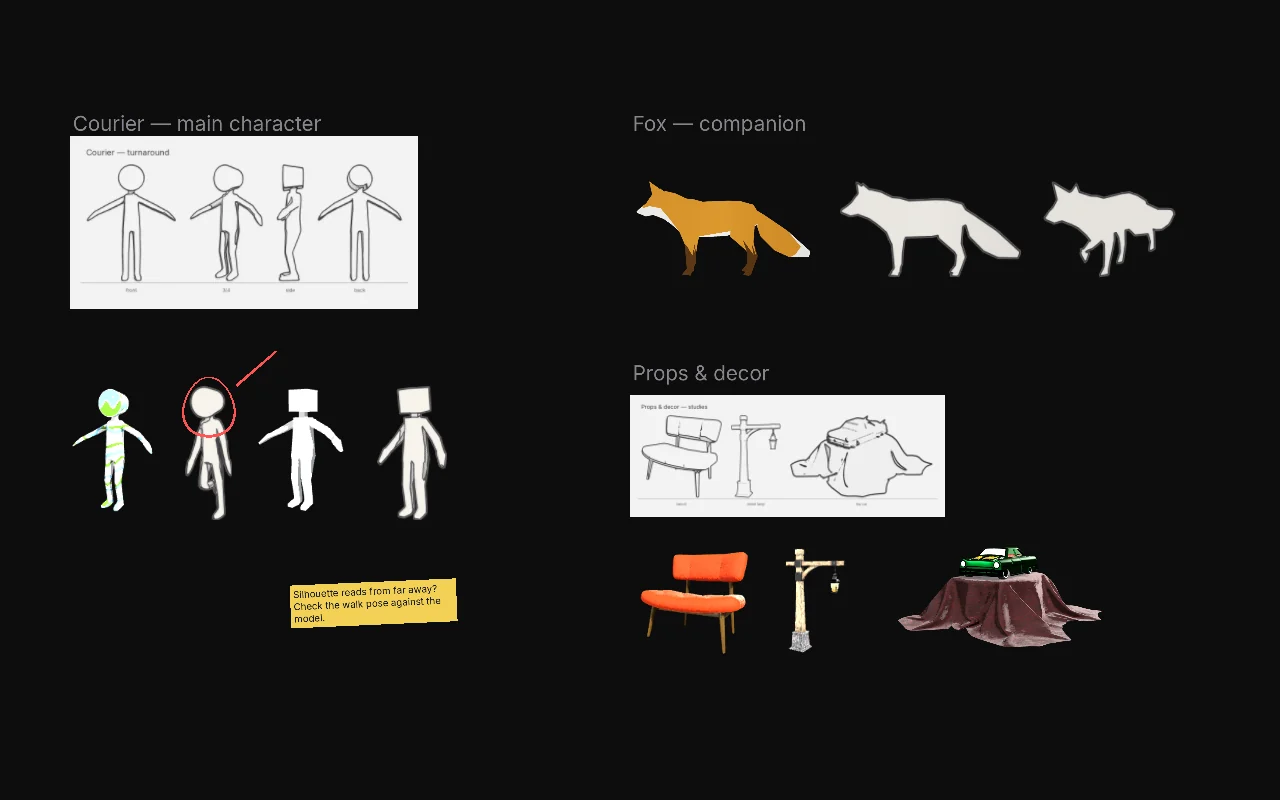
Idéorama ships with a demo board that shows a small character project: a courier, a fox companion, and props.
- Press Ctrl O and open the demo board.
- Pan, zoom and double-click items to look around, then try the right-click menu.
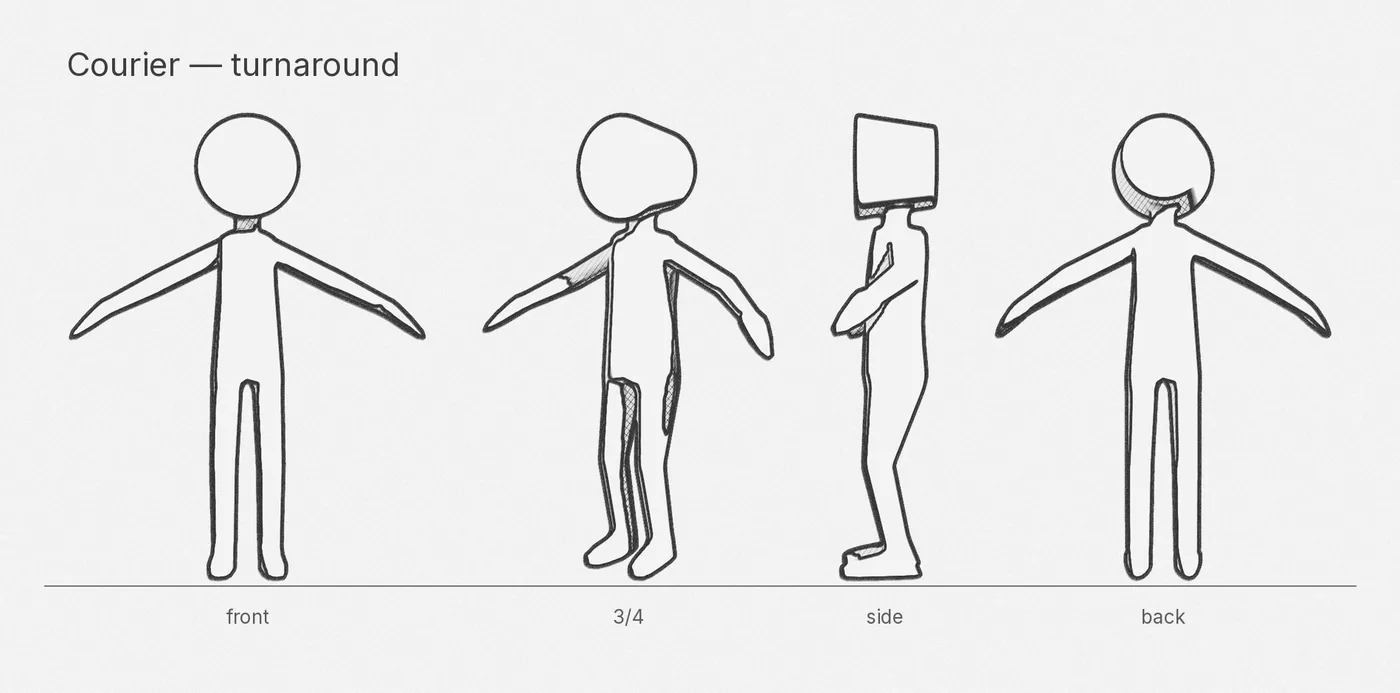
The pencil sketches were drawn from clay renders of the models. Their transparent backgrounds let content alignment find each drawn character's feet.
Credits
The models come from the Khronos glTF Sample Assets: CesiumMan and RiggedFigure (CC-BY 4.0, © Cesium), Fox (CC0 / CC-BY), SheenChair, Lantern and ToyCar (CC0). The generated sketches are released under CC0. Full credits ship with the demo board.